Installing the NICECA Root Certificates
Download Root Certificates
Download the 'NICECA' root certificates from the website http://vpn.nic.in and save them to your computer.

Start Certificate Installation
Open the downloaded root certificate and click the 'Install Certificate' button

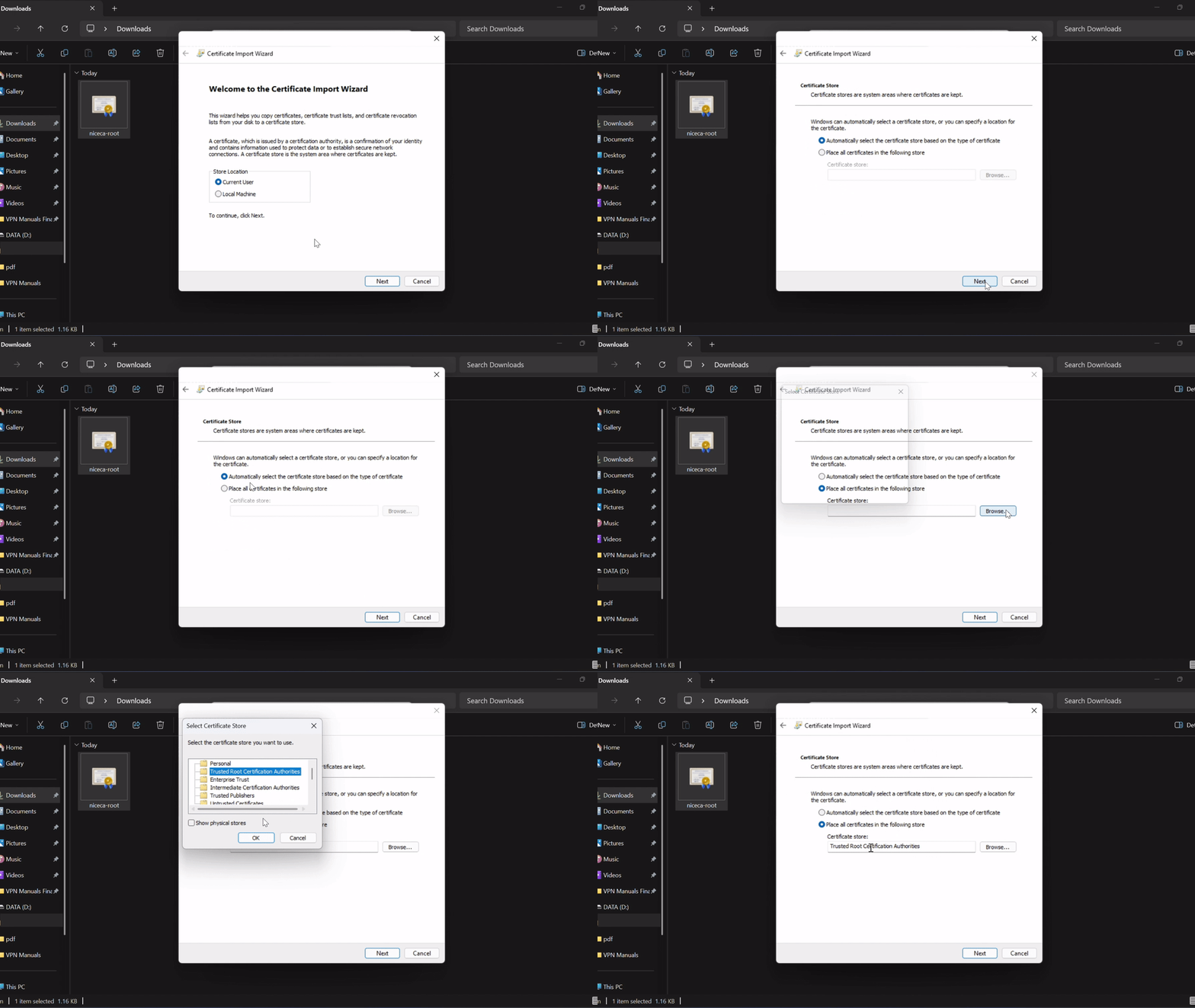
Advance Through Wizard and Specify Certificate Store Location
> In the "Welcome to the Certificate Import Wizard" window, click 'Next'.
> Check the box 'Place all certificates in the following store'. Click 'Browse' and select 'Trusted Root Certification Authorities'. Click 'OK'.
Continue to Finish and Complete Import
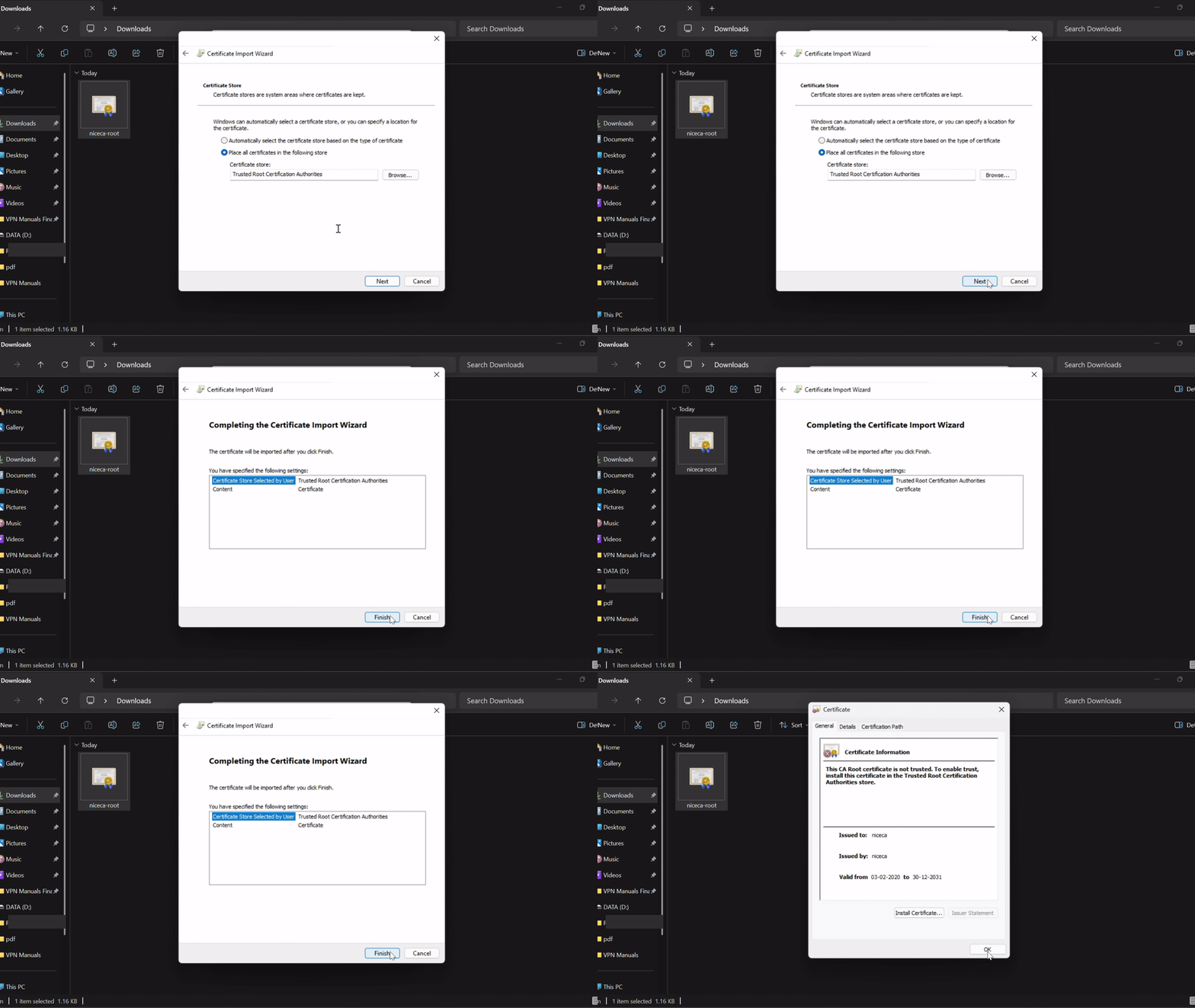
> Click 'Next' in the Certificate Store window.
> The "Completing the Certificate Import Wizard" screen, click 'Finish'.
Confirm Security Warning and Complete Installation
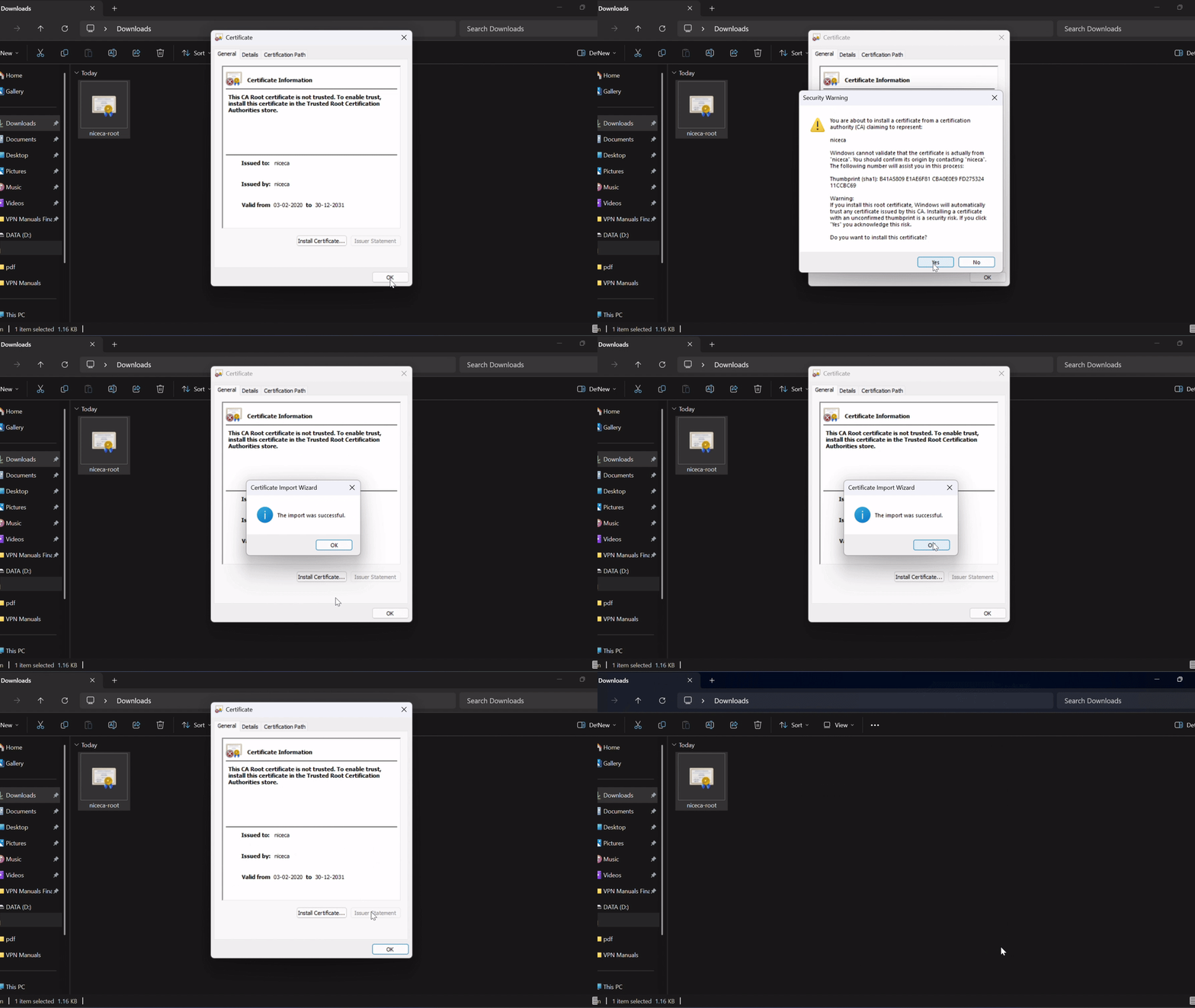
> A Security Warning will appear. Click 'Yes' to install the root certificate, acknowledging the security risk of installing an unconfirmed thumbprint.
> Click 'OK' to complete the installation.