A. Installation and File Setup
Download DSC (*.pfx file) received in the mail by long pressing the icon and selecting Save to File option.

Download Cisco Secure Client from Apple App Store.

B. Importing the Certificate
> Go to the Downloads folder through Files app in the iOS device.
> Long press the .pfx file and select Share option.
> Select AnyConnect app to open the DSC (.pfx file) in Cisco Secure Client and enter private key of the DSC received in SMS and select Import to install it.

C. Adding New VPN Connection
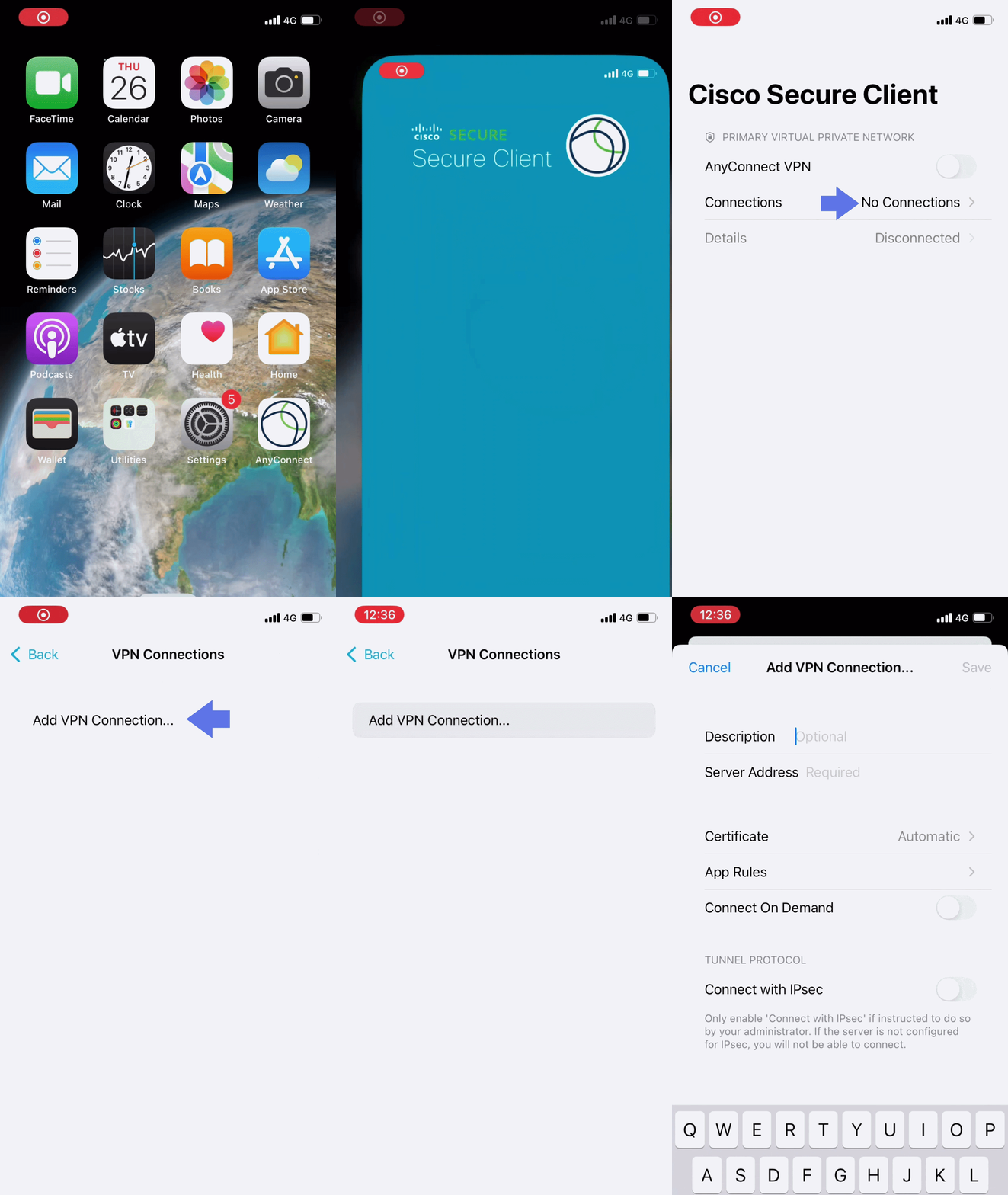
Open Cisco Secure Client and select No Connections. Then select Add VPN Connection.
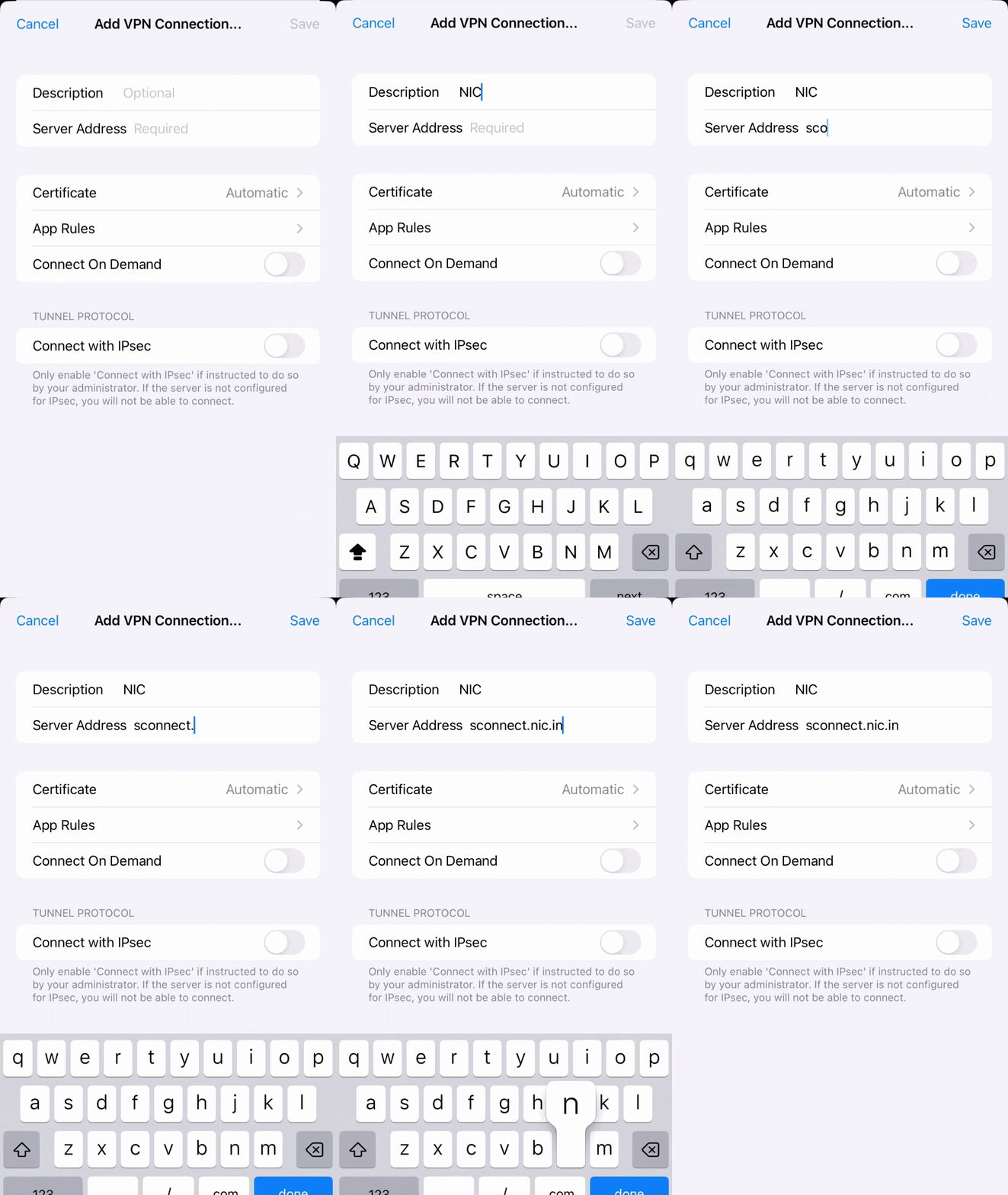
In description type NIC VPN and in Server Address type sconnect.nic.in.
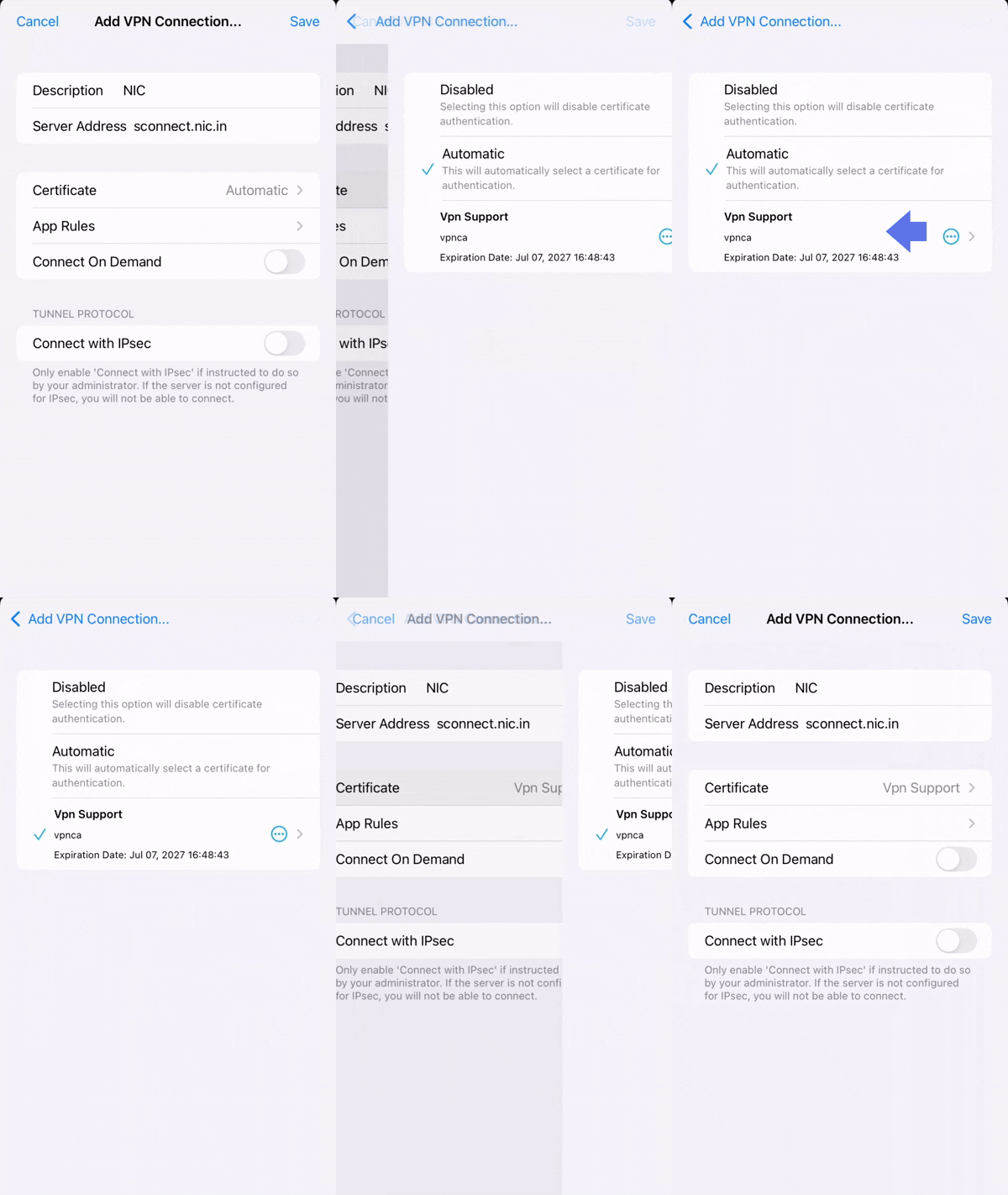
Click on Certificate option and then select the user's certificate. Now click on Add VPN Connection on the top left corner of screen to go back to previous screen.
> Select Save and click on Allow to add VPN configuration to device.
> New VPN connection to connect to NIC VPN services is enabled.

D. Connecting and Disconnecting VPN
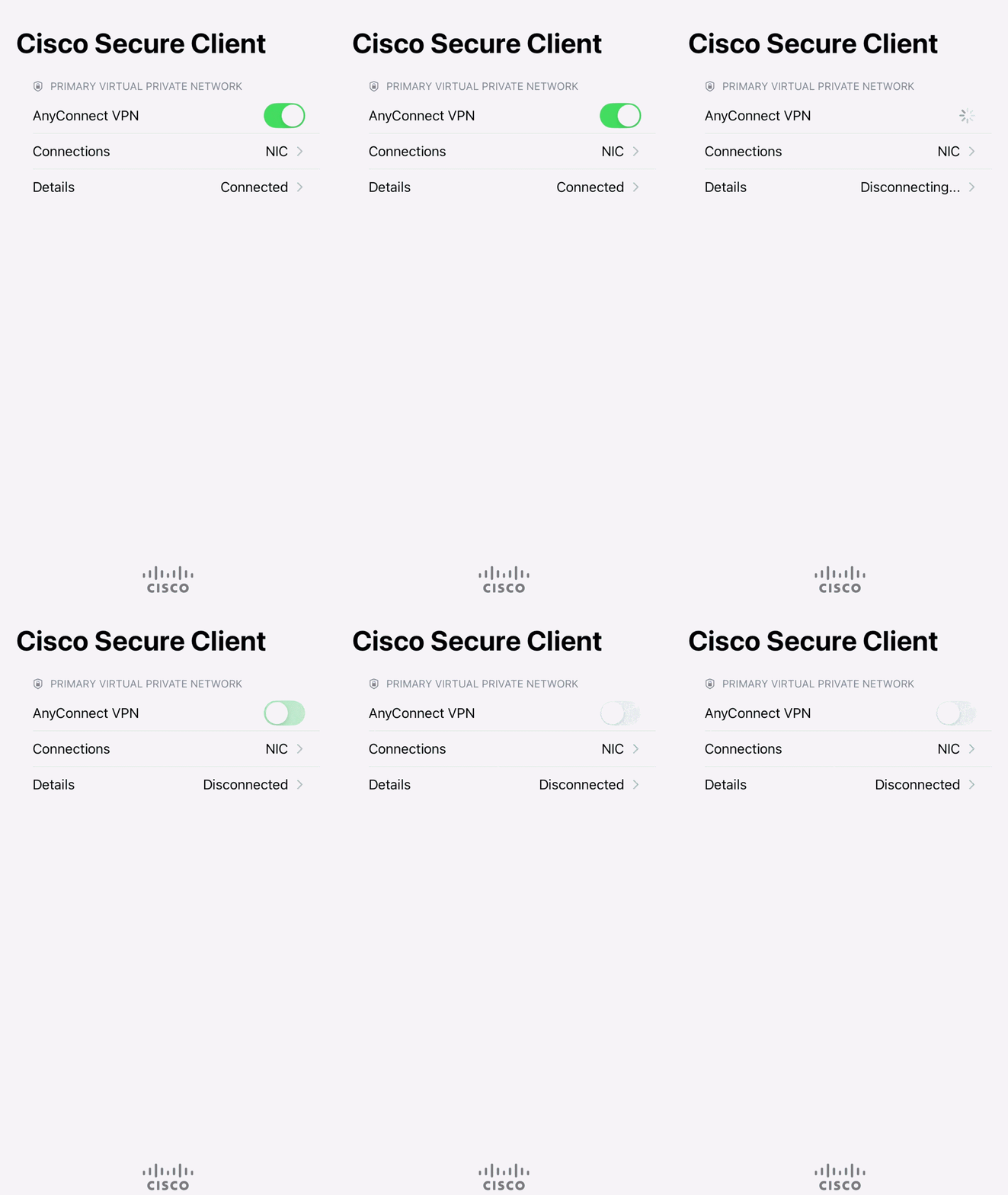
> Toggle the AnyConnect VPN switch to initiate VPN connection and enter VPN password when prompted.
> Accept the notice to connect VPN and access internal applications.
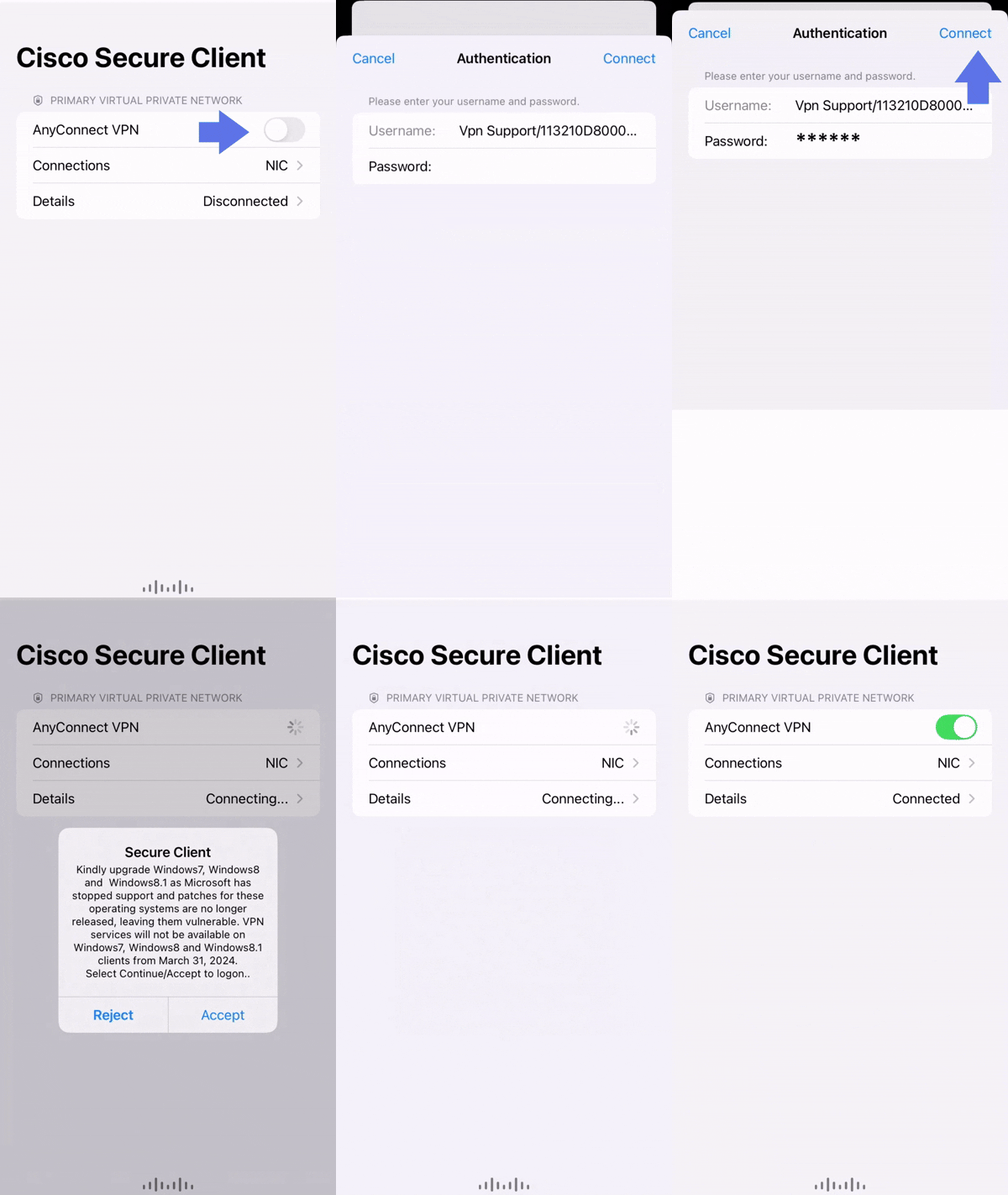
Toggle AnyConnect VPN switch to disconnect after use.