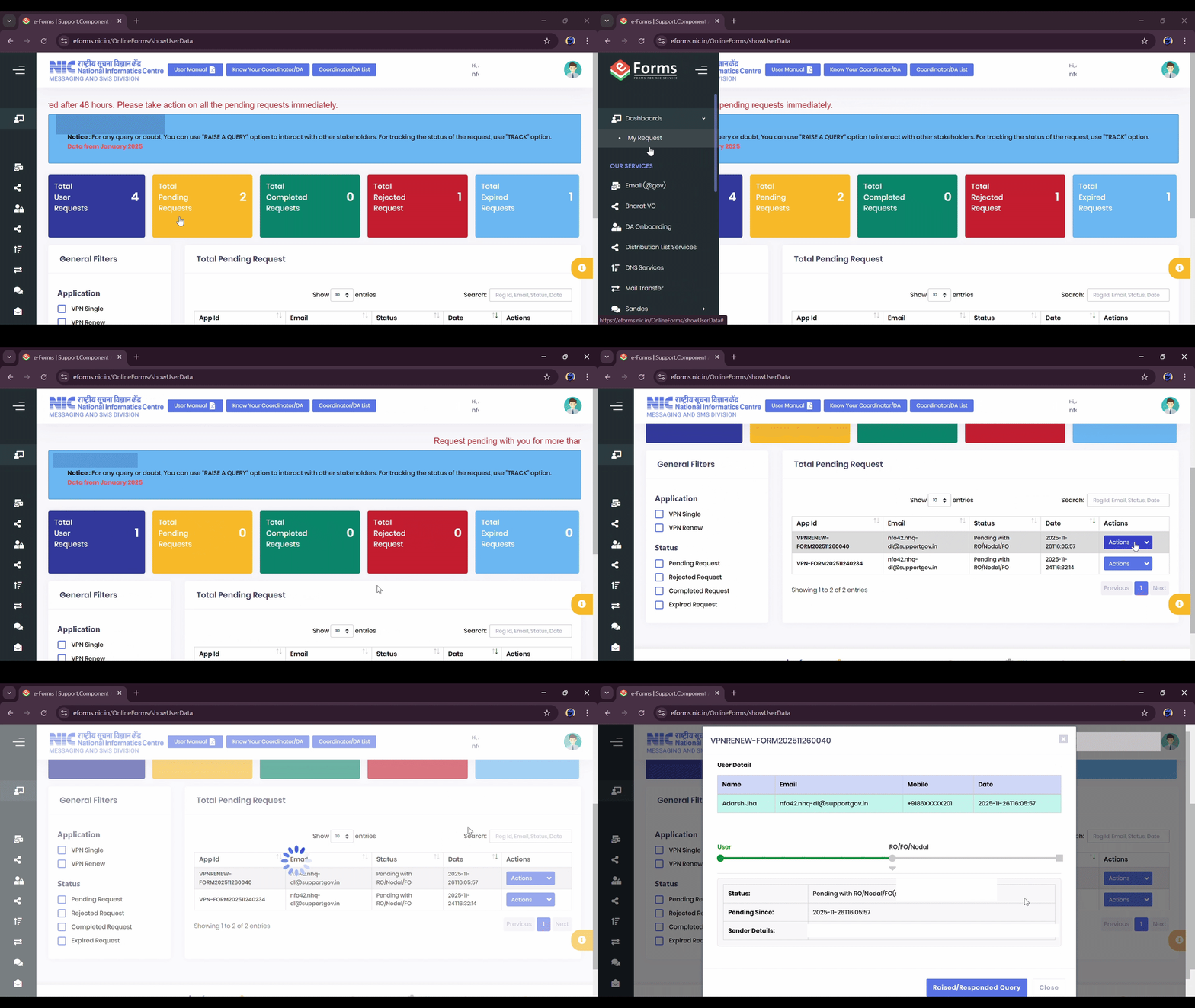
1. Access and Login to eForms Portal
Access Portal
Access the site https://eforms.nic.in in any browser and click the 'Ok' button on the initial 'Notice' popup.

Click Login
Click on the 'Login' option located in the top right corner of the page.
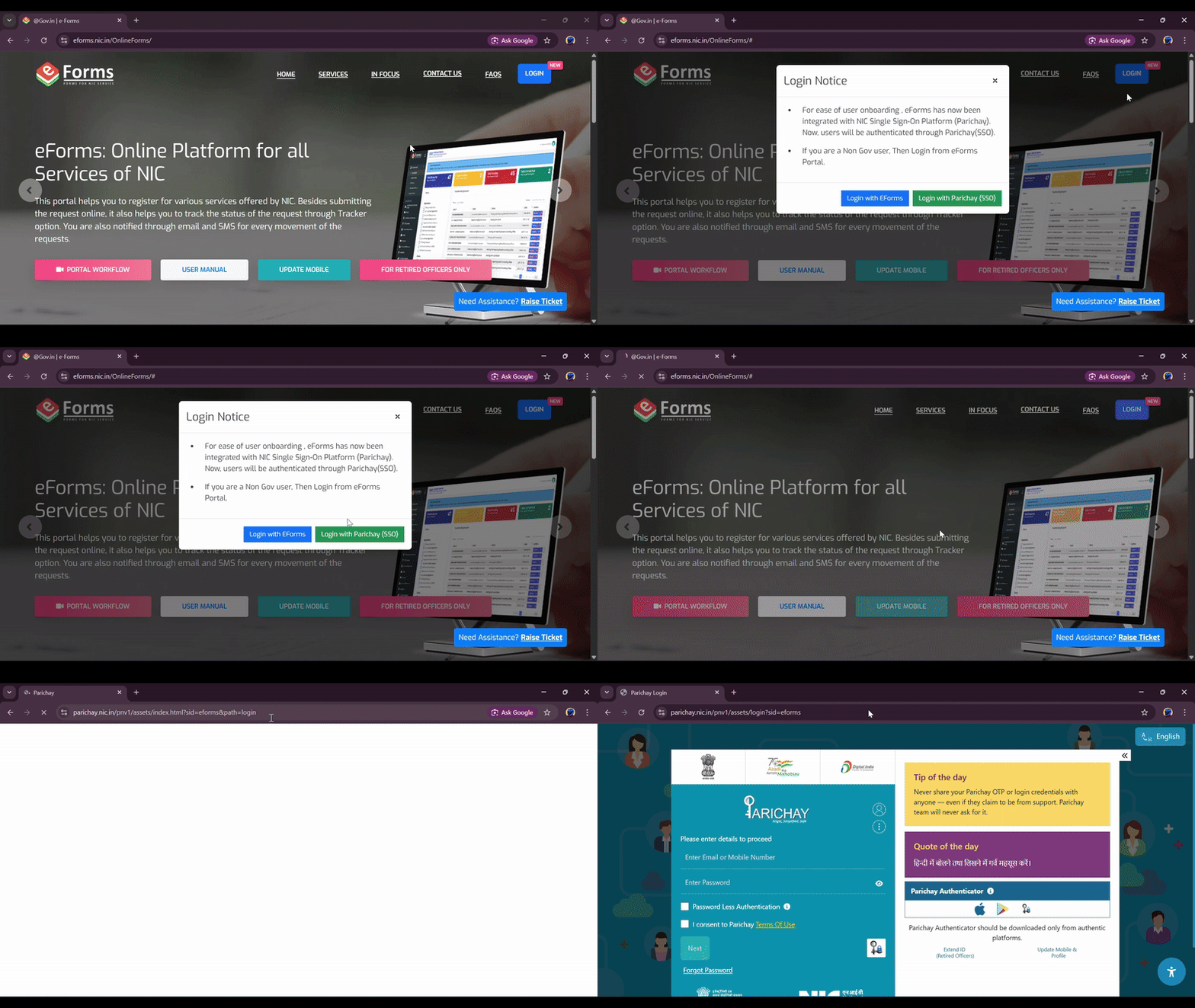
Login with Government Email
Enter your 'Government email id & password' (e.g., @nic.in, @gov.in) and click 'Next'.
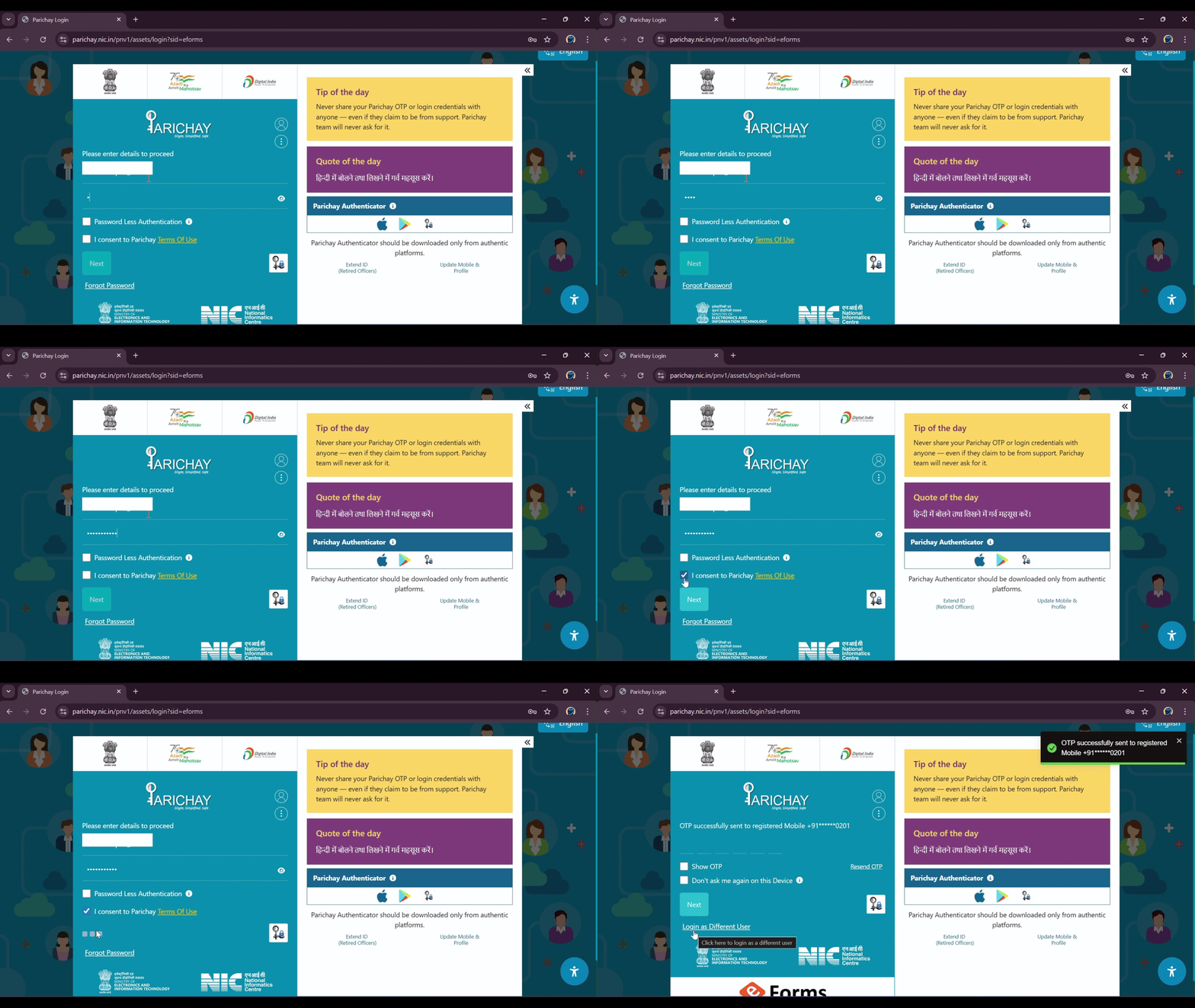
2. Verify Mobile OTP
Verify Mobile OTP
An 'OTP' will be sent to the 'Registered mobile number' linked with your email ID. Enter the received OTP and click 'Next'. If not received, click 'Resend mobile otp'.
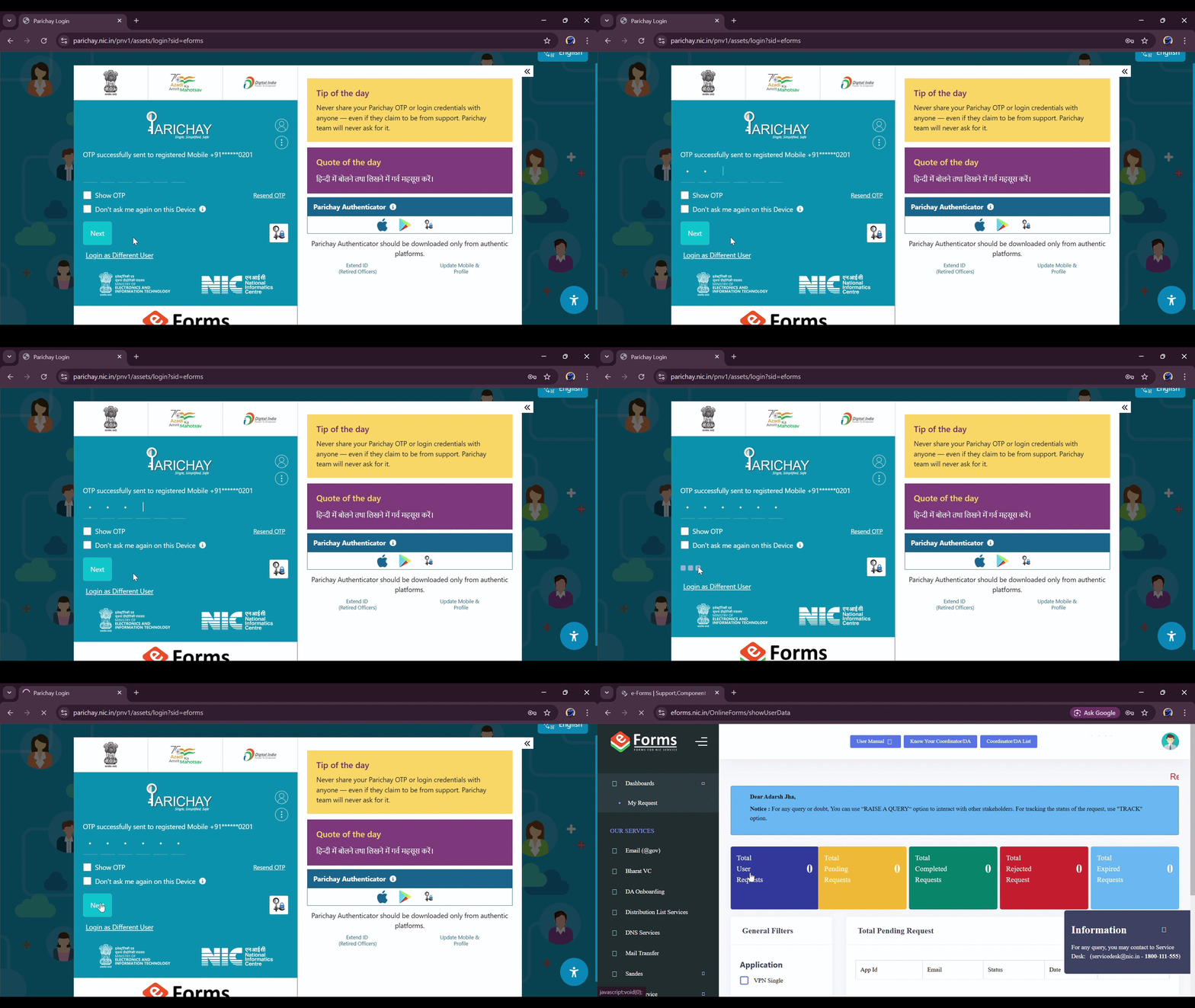
3. Fill User and VPN Details
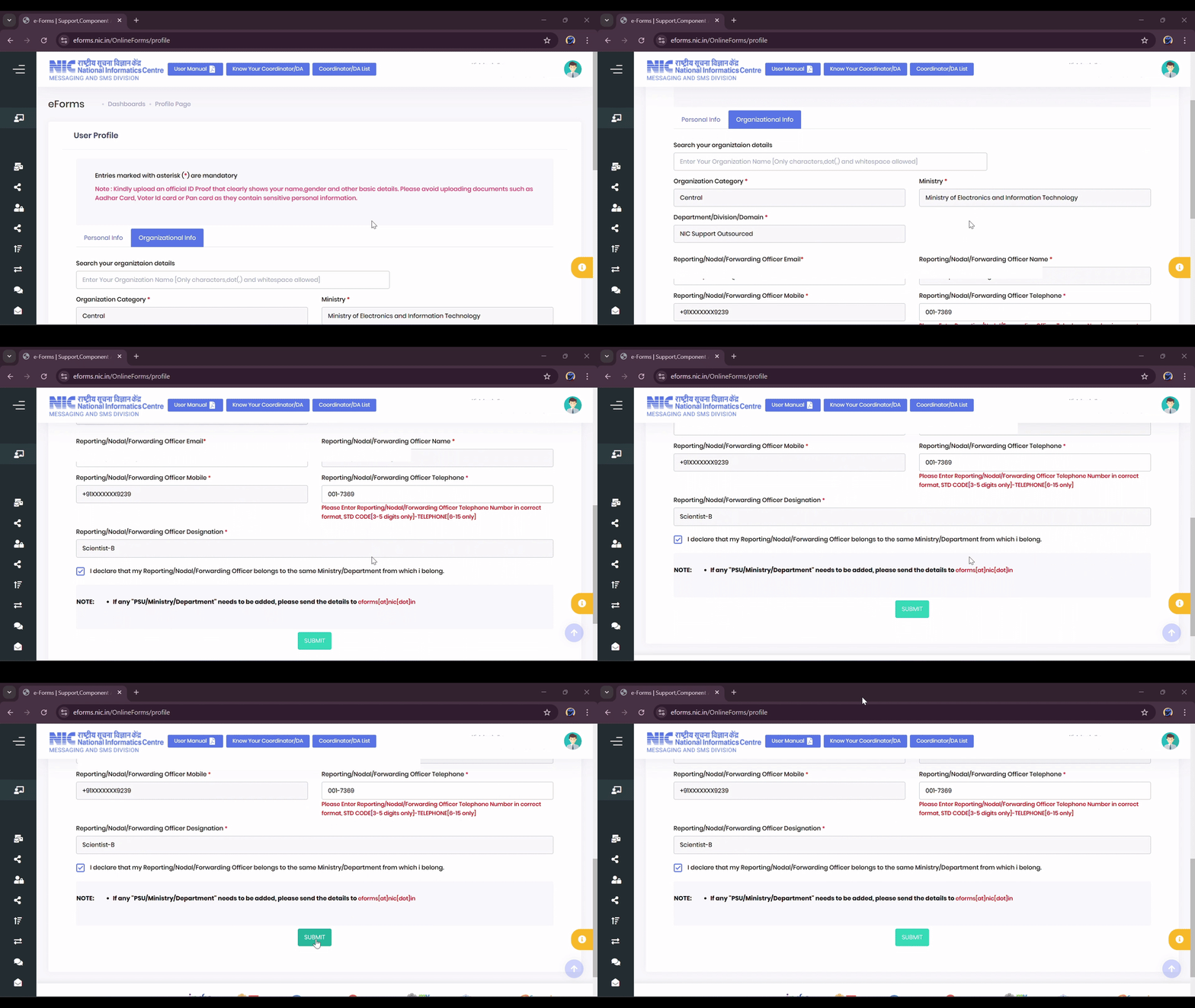
Complete User Profile
The 'User Profile' page will open. Fill in all 'Mandatory fields' and click 'Continue'.

Fill Organization Details
Fill in 'Organization details': select 'Organization Category', then 'Ministry & Department'. Type your 'reporting/nodal/forwarding officer's email id'. Check the declaration box and click 'Submit'.
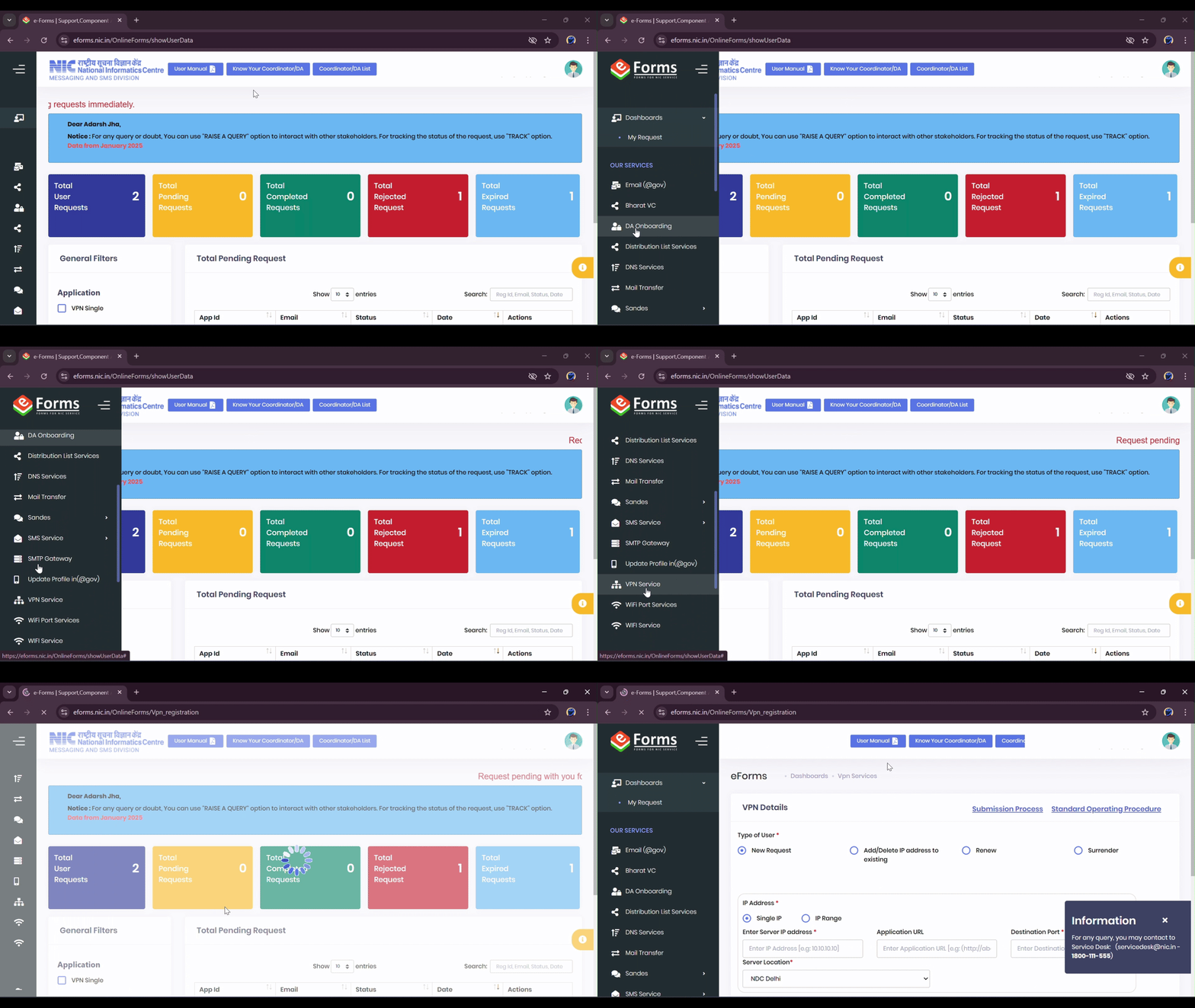
Select VPN Service
In the left-side panel, select the 'VPN Service' link to open the application form.
4. Submit VPN Renewal Request
Configure Renewal Details
Select the 'Type of User'. Then, select 'NIC Coordinator' and choose the 'Add to existing' option. Type your existing 'VPN registration number' and click the 'Search' option.
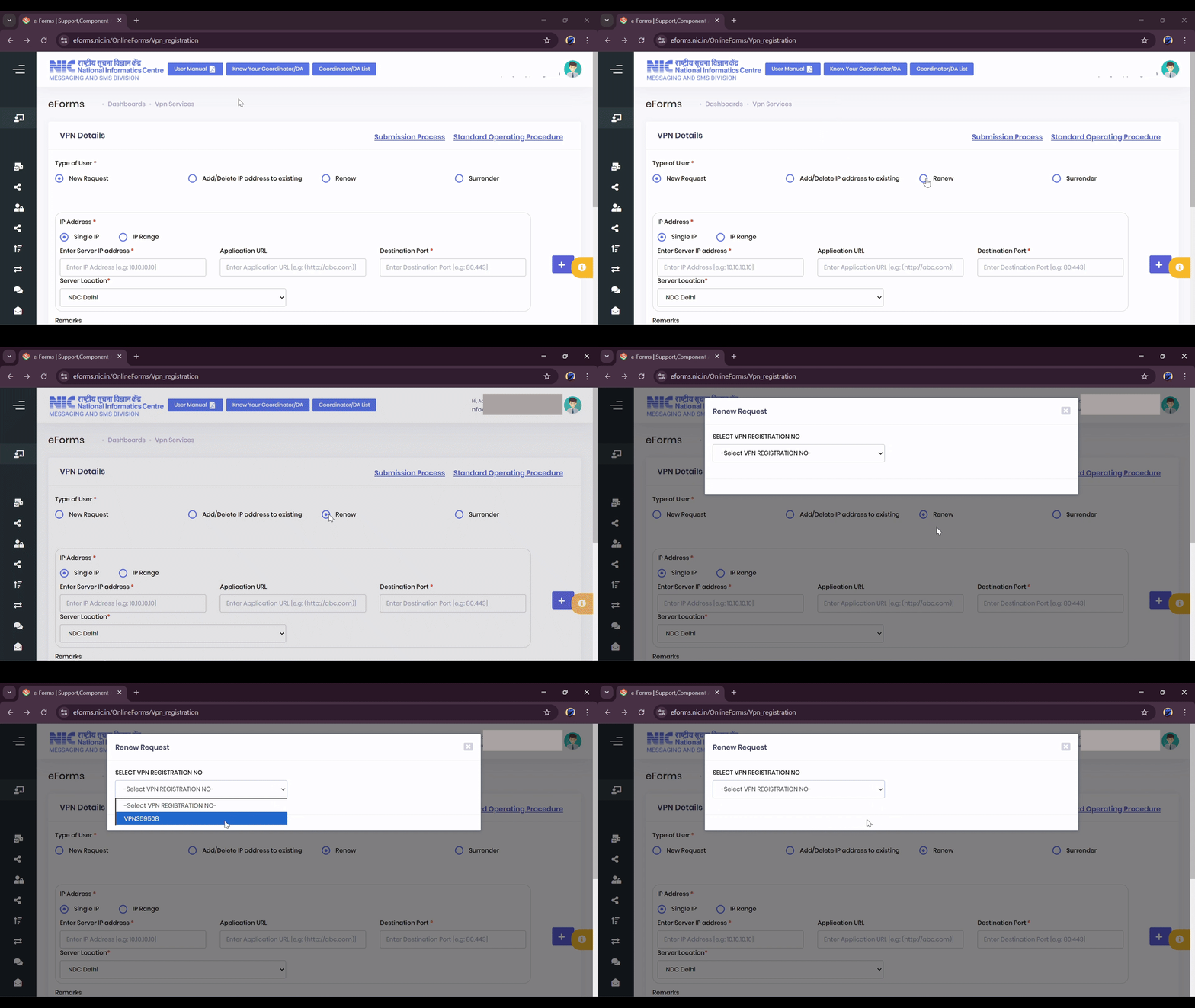
Search and Click Renew
After clicking search, your existing server IPs will be displayed. Now, click the 'Renew' option.

Confirm and Proceed Online
Click 'Yes' to confirm you want to proceed. In the next step, under 'Form Submission Type', select the 'Proceed Online' option. Then, click 'Continue'.
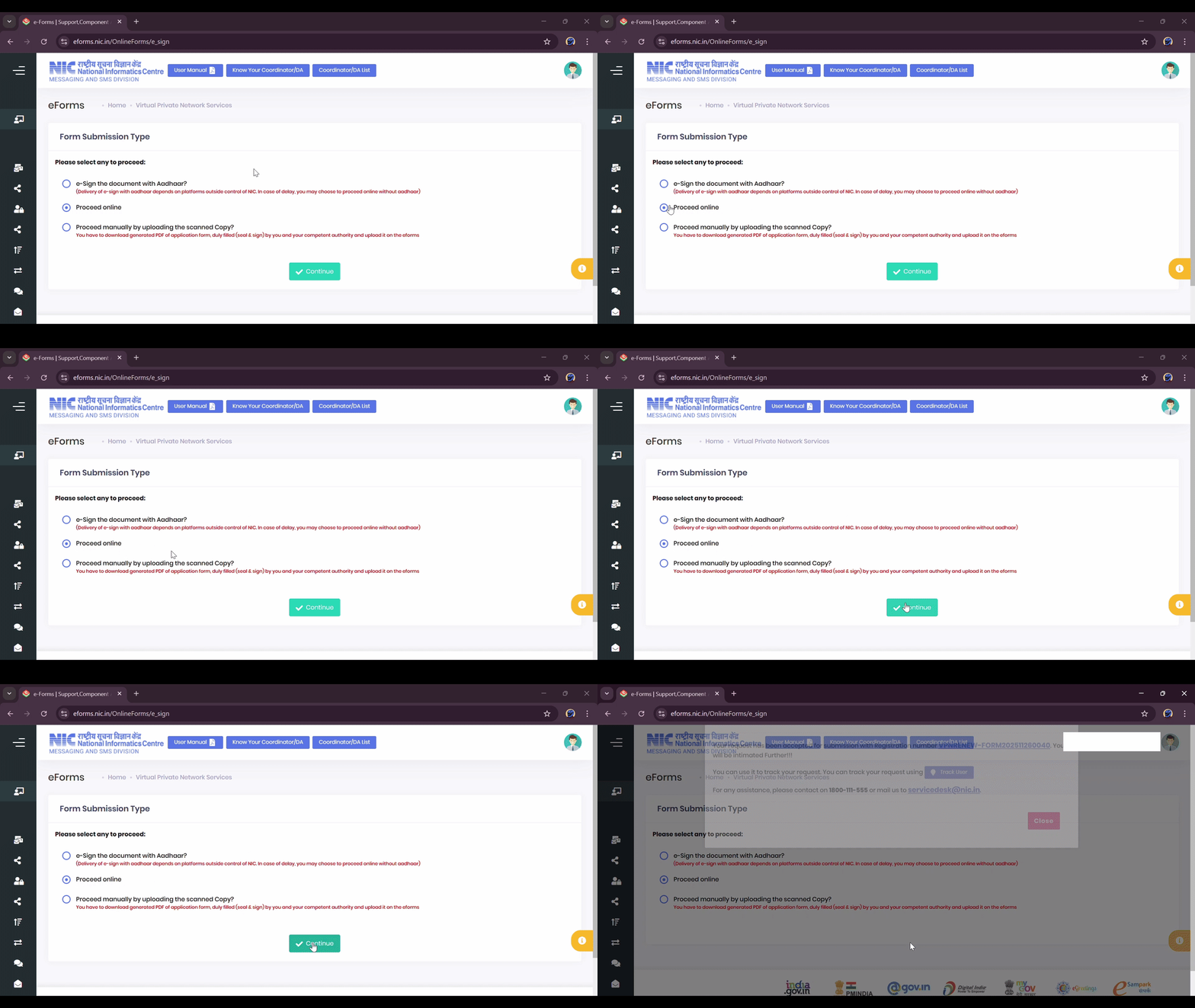
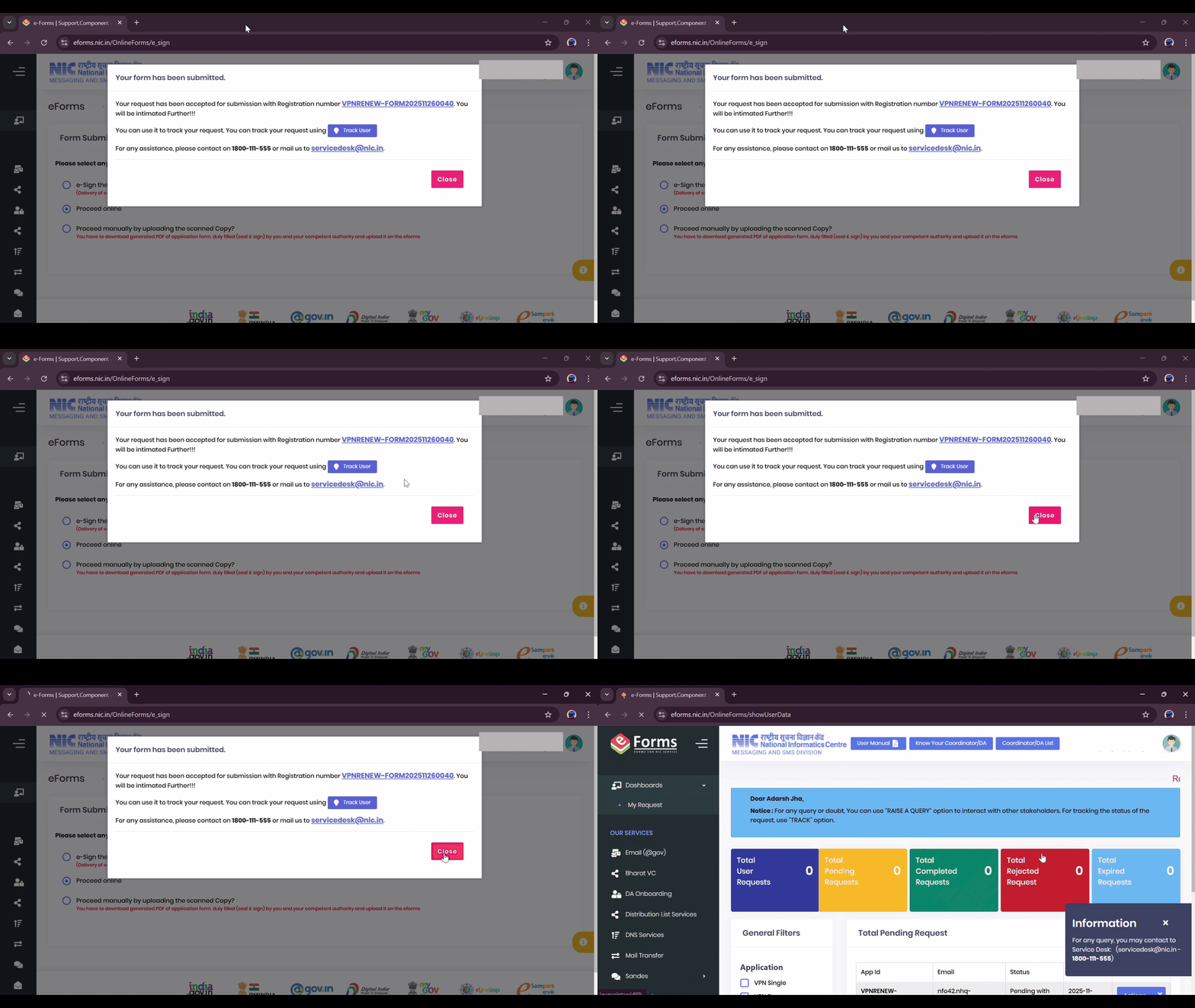
Final Submission Confirmation
After clicking 'Continue', a message will display confirming your form submission and providing your 'VPN Registration number'. You will also receive this registration number via SMS and Email ID. Click 'Close' to dismiss the message.
5. Tracking Application Status
Track Your Request
You can track the status of your VPN application form on the eforms.nic.in site. In the left-side panel, select 'My Request'. On the request list, click the 'Actions' button next to your application and select 'Track'.