A. Accessing Safe Mode
Shift Key + Restart
Press and hold the 'Shift' key, and then 'Restart' the system.
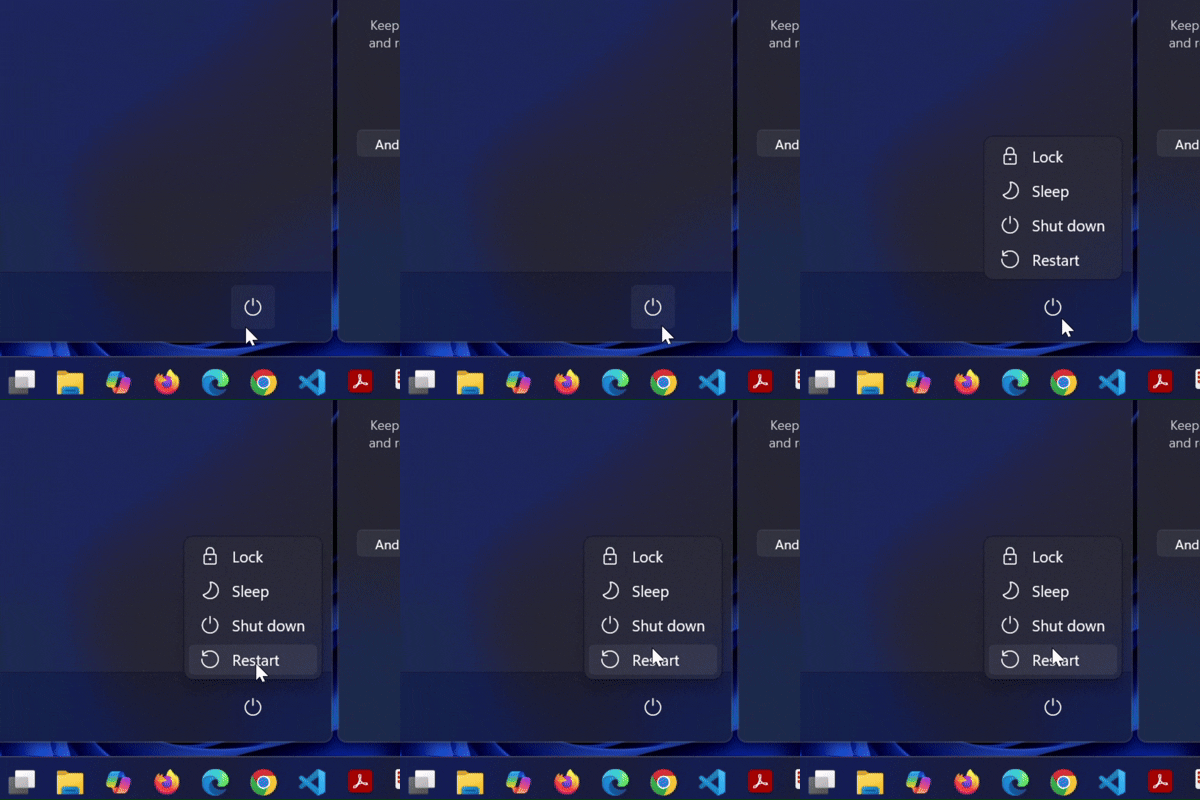
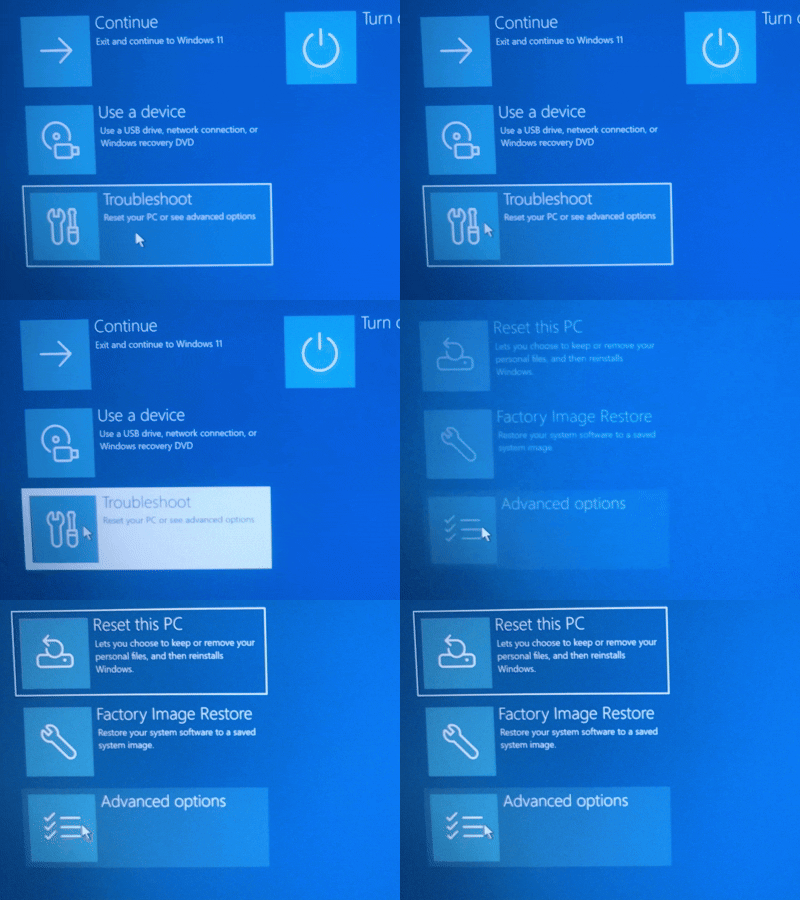
Follow these steps
> From the "Choose an option" screen, click on the 'Troubleshoot' option.
> the Troubleshoot screen, click on 'Advanced options'.
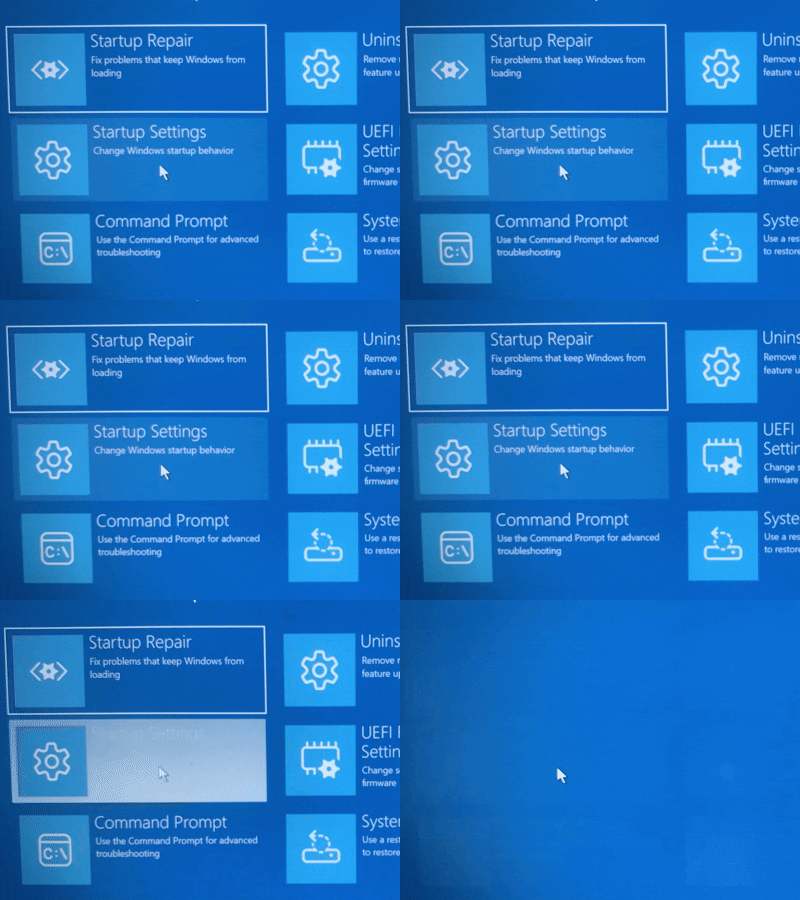
> the Advanced options screen, click on 'Startup Settings' (Change Windows startup behavior).
> the Startup Settings screen, click the 'Restart' button.
> After the system restarts, press the number '4' key to Enable Safe Mode.
B. Registry Fix and Final Restart
Log in
Now enter the password to log in to the system in Safe Mode.

Open Registry Editor
Go to 'Run' by pressing the 'Windows Key + R'. In the dialog box, type 'regedit' and click 'OK'.
Navigate to Credential Providers Path
In the Registry Editor, navigate to the following path:
Computer\HKEY_LOCAL_MACHINE\SOFTWARE\Microsoft\Windows\CurrentVersion\Authentication\Credential Providers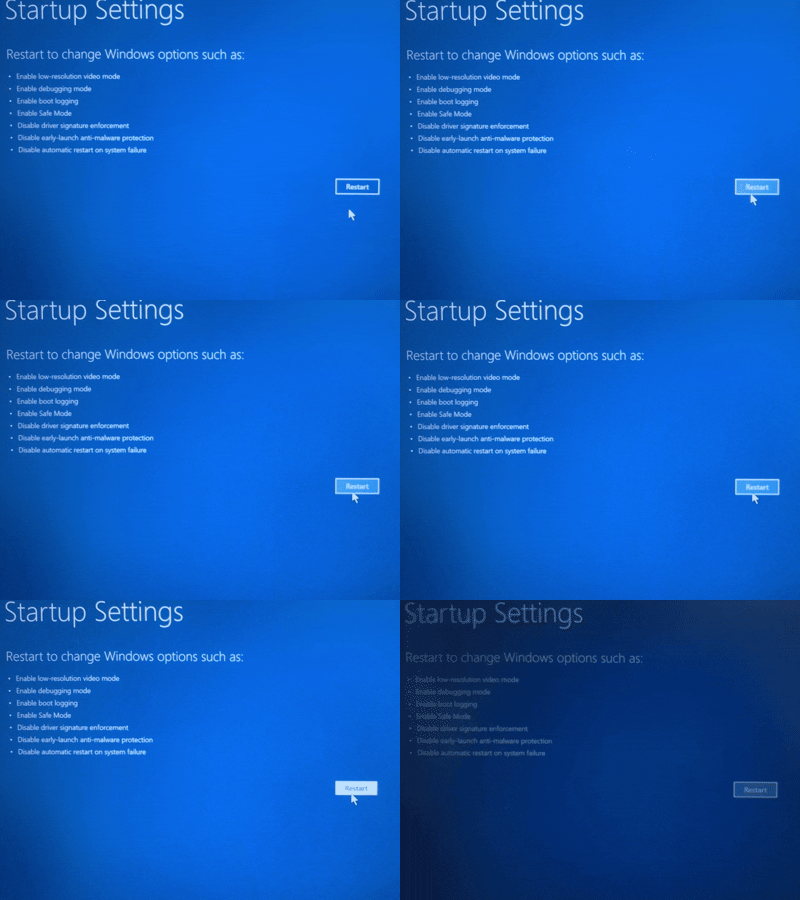
Modify EnforceSingleLogon Value and Restart
Search for the subkey {B12744B8-5BB7-463a-B85E-BB7627E73002} under `Credential Providers`.
Inside this subkey, find the value name 'EnforceSingleLogon' on the right side. Set its value from '1' to '0' and then restart the system.