1. Download & Extract
Download DSC
Download the DSC mailed to user by VPN Support (vpnservices@nic.in), save it on user computer.
Download Cisco AnyConnect Client
Download Cisco any connect secure mobility client through https://vpn.nic.in

Uploading Files to the server
Use Winscp and upload the following files to the server.
a. Certificate PFX file
b. Cisco anyconnect client
c. Nss-tool package

2. Tool Installation
Install the cisco anyconnect client
Run the following commands one by one for the installation:
b) cd cisco-secure-client-linux64-5.1.8.122/vpn/
c) ./vpn_install.sh
d) cd ../..
e) restorecon -v /etc/systemd/system/vpnagentd.service
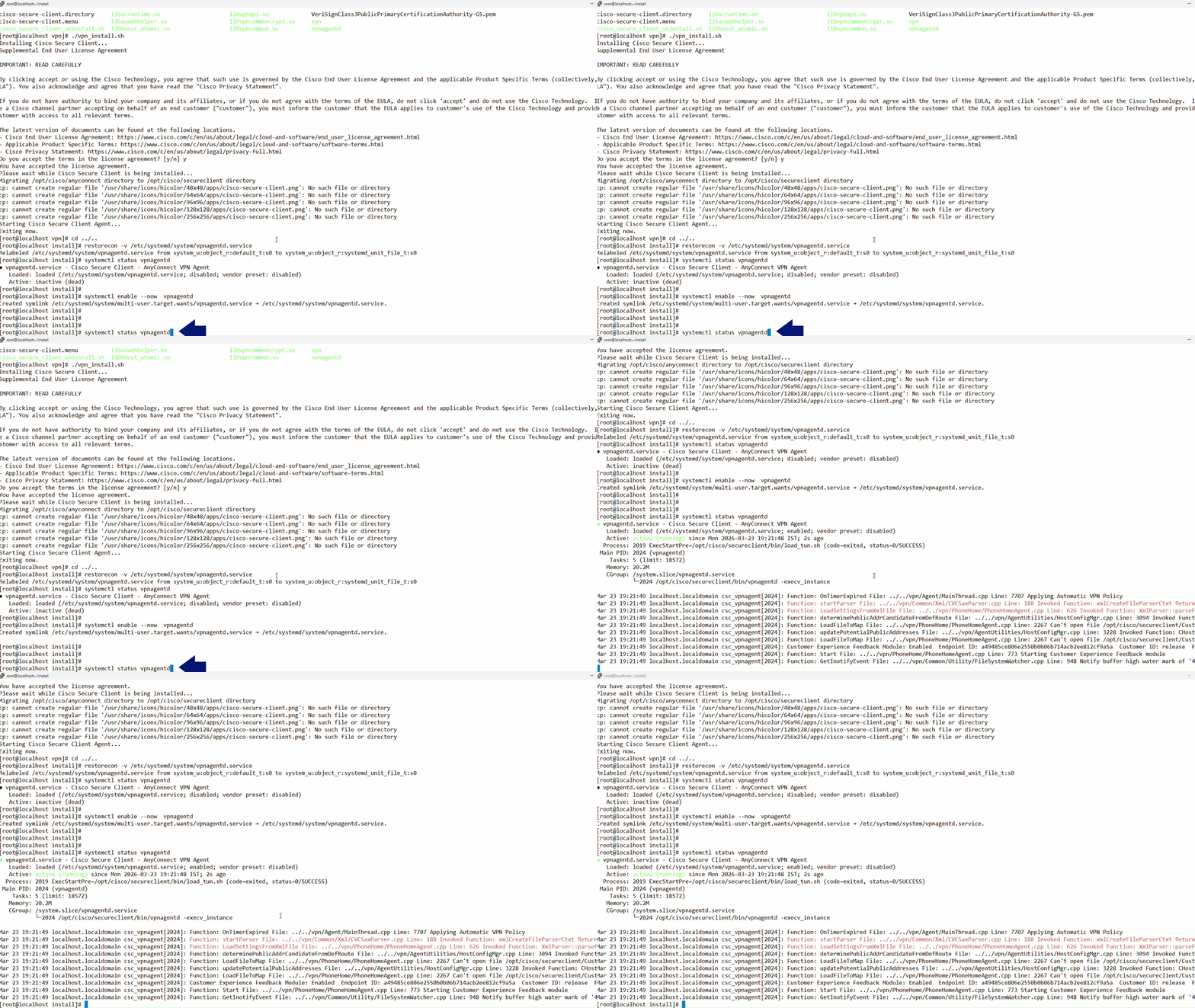
f) systemctl status vpnagentd
g) systemctl enable --now vpnagentd

Check if the service has been active
Run the following command to check if the service is active:
Install the nss-tools packages
Install the nss-tools packages and proceed to the next step.
3. Import Certificate (DSC)
Create the following directories
Run the following commands one by one to create the directories.
b) mkdir -p /opt/.cisco/certificates/ca
c) chmod 755 /opt/.cisco/certificates/client
d) chmod 700 /opt/.cisco/certificates/client/private

Install the certificates and keys
Install the Certificate by running the following commands.
Note: Enter the PKCS12 and Import password whenever its required during installation.
b) openssl pkcs12 -in cert.pfx -out root_ca.pem -nodes -cacerts
c) certutil -A -n "VPN_Root_CA" -t "CT,C,C" -i root_ca.pem -d sql:/etc/pki/nssdb
d) openssl pkcs12 -in cert.pfx -clcerts -nokeys -out vpn_client.pem
e) mv vpn_client.pem /opt/.cisco/certificates/client/
f) openssl pkcs12 -in cert.pfx -nocerts -nodes -out vpn_client.key
g) mv vpn_client.key /opt/.cisco/certificates/client/private/vpn_client.key
h) chmod 644 /opt/.cisco/certificates/client/vpn_client.pem
i) chmod 600 /opt/.cisco/certificates/client/private/vpn_client.key

Create a user profile
To create a user profile, open a file by running the following command.
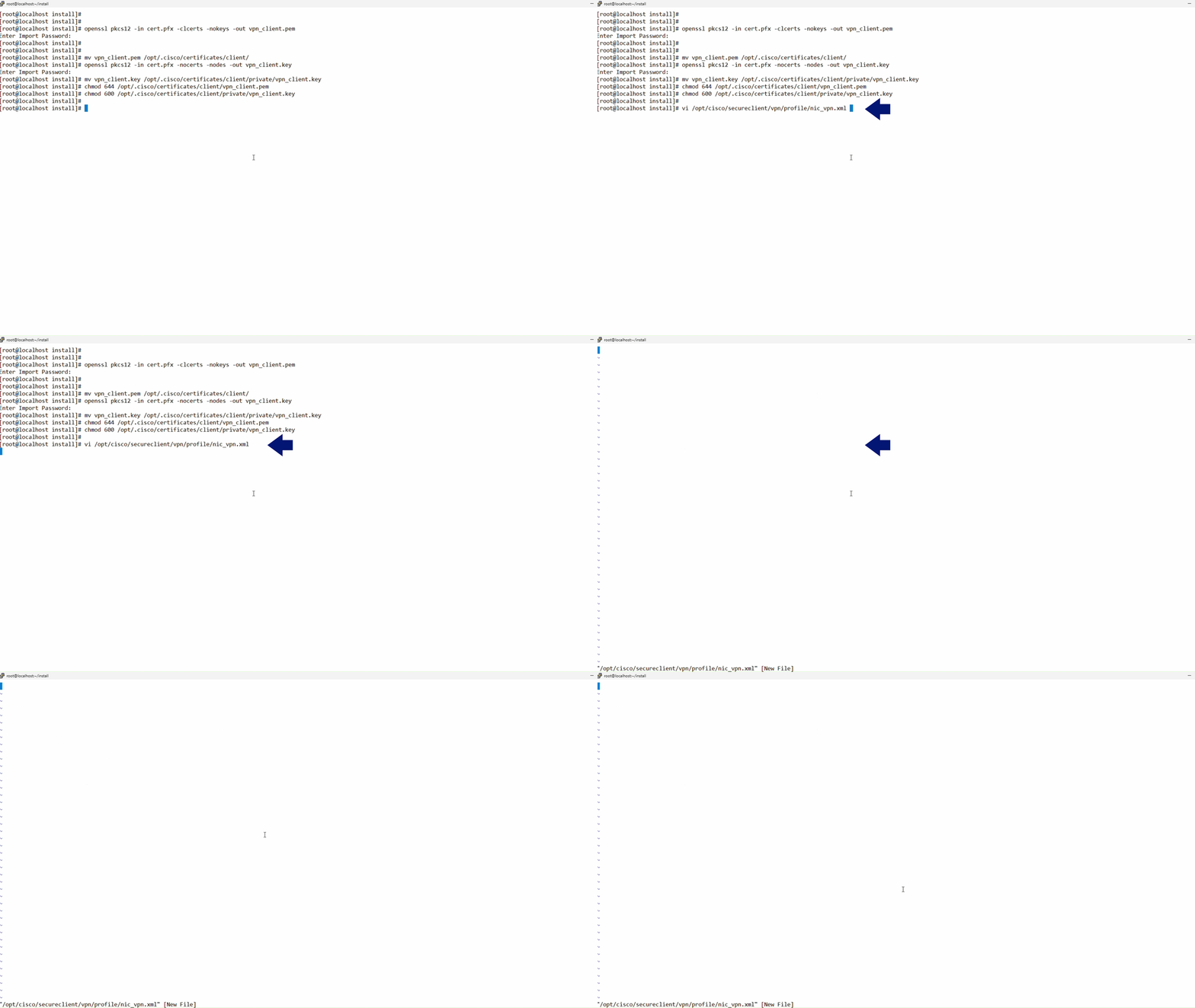
Paste the following content in the above file
After opening the file paste the following the command in the above file.

4. Connect to VPN
Restart the service
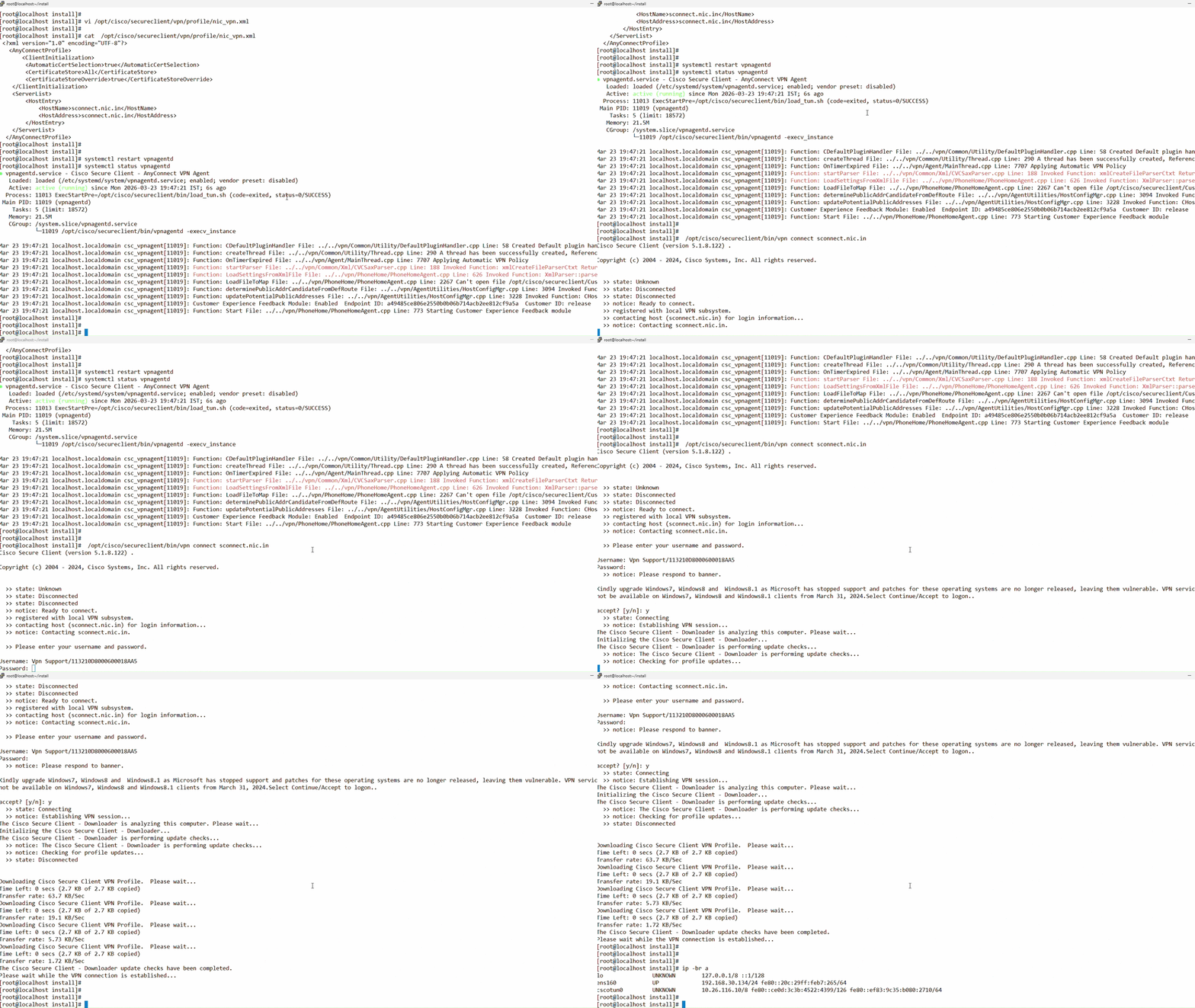
Restart the Service by running the following command.

Connect with vpn service
Run the following command to connect with the vpn service.
To Disconnect with vpn services
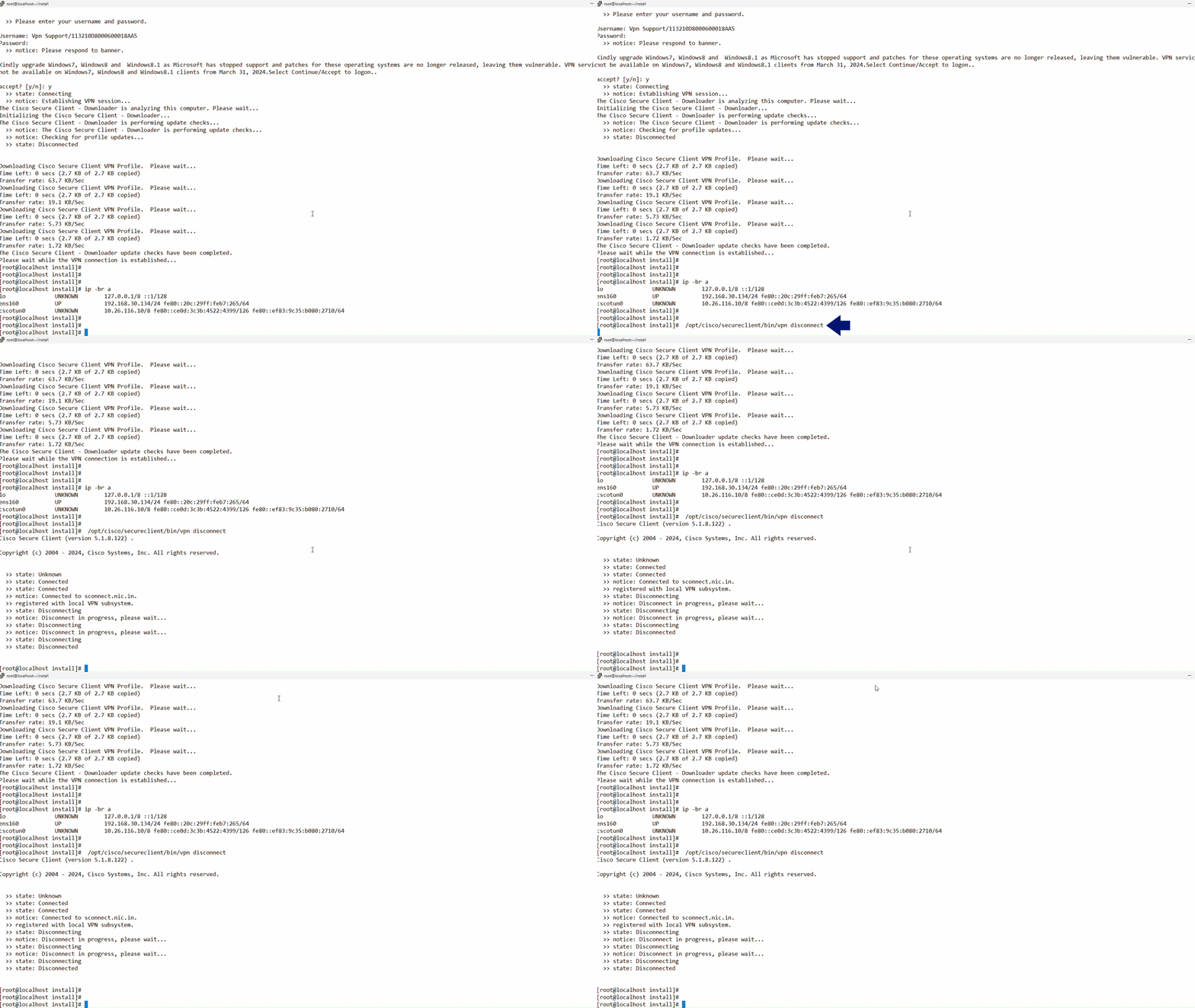
Run the following command to disconnect with the vpn service.